
Amazon product photos have some simple guidelines relevant to how you would use a batch processing tool like PackshotPanda:
- The background of the main image must be pure white (in hex notation #FFFFFF)
- JPG images are preferred. PackshotPanda prefers JPG too as it produces smaller image sizes.
- Images should ideally be at least 1,000 pixels. I recommend 2,000 px, and I will speak about why in a moment.
- Show the product as 85% of the image. This will affect how we add the padding space.
I recommend 2,000px for multiple reasons:
- On mobile zooming in to the image when having a 1000px image would look grainy
- Even without zoom, on high DPI screens like most phones and newer laptops, 1000 px would not look crisp enough. Typically, those screens need twice the pixel dimensions for images to look good.
With that said, PackshotPanda is suited for converting images in bulk to this standard size once you set it up.
Setup batch image processing for Amazon listing
Step 1: Go to presets screen
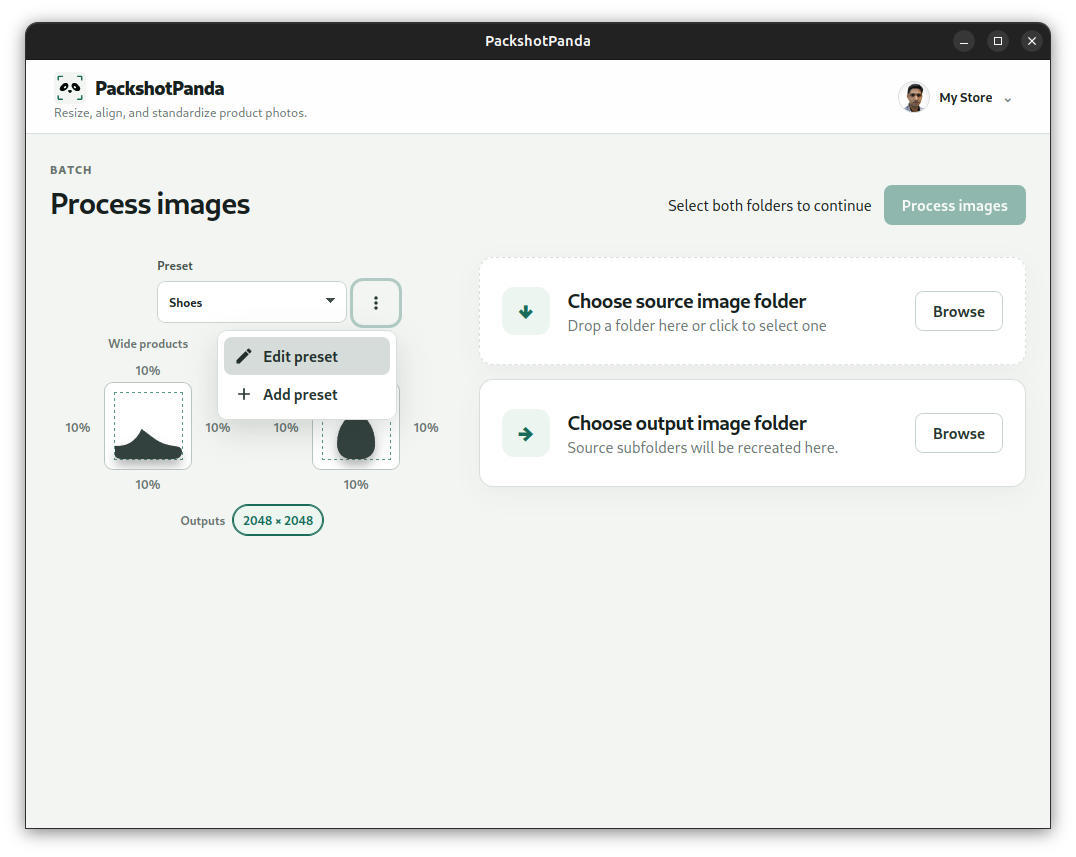
Find the presets screen within PackshotPanda. If you are using PackshotPanda for the first time you will be presented with the Presets screen during onboarding.
Step 2: Base Settings
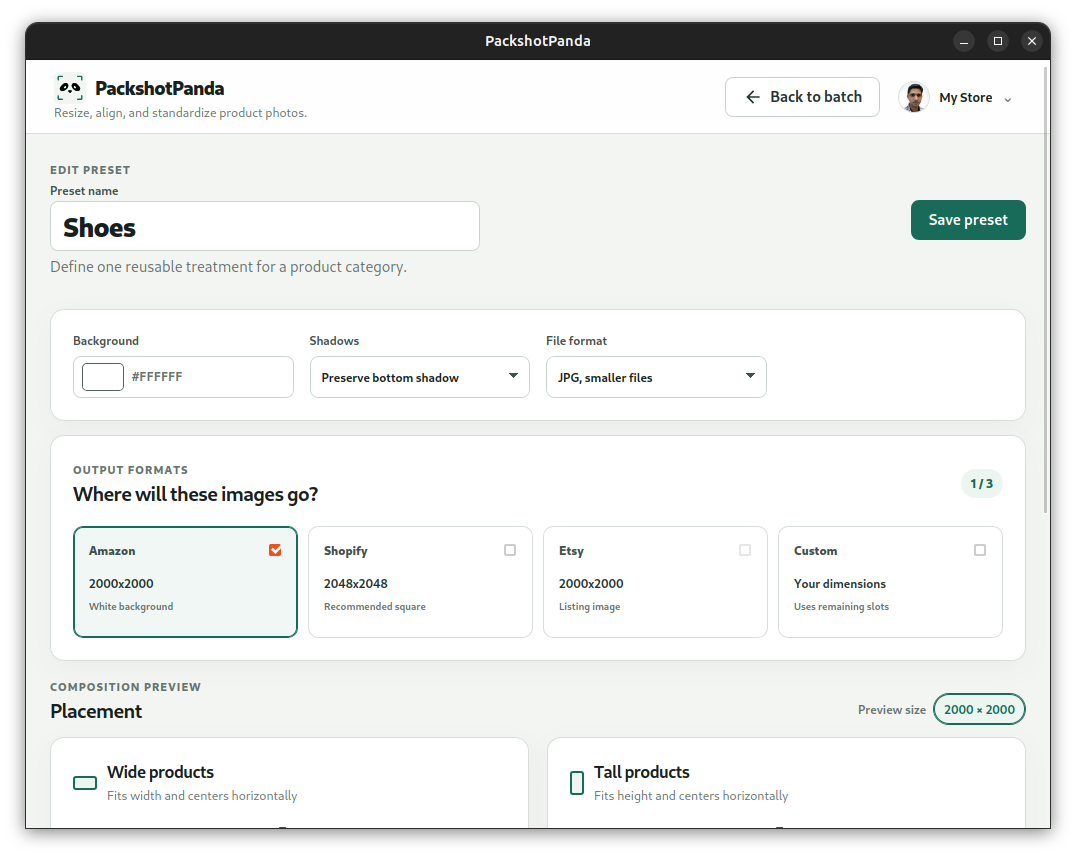
- Type in a Preset name like “Clothes” or “Shoes”
- Set the Background color to #FFFFFF.
- Set the File format to JPG.
- Depending on your product, adjust the shadow preservation setting. Keeping the shadows looks nicer on product photos, and this is one of the unique features of PackshotPanda.
- Toggle Amazon from the Output formats. If you want a custom size, then check
Customand type the dimension in the text area below in the formatwidthxheight(e.g. 1500x1500).
Step 3: Placement
Under Placement > Wide products card, use 7% padding for all sides (so that shadows get some space, leaving 85% area for the product) and set the Vertical Alignment setting to Center.
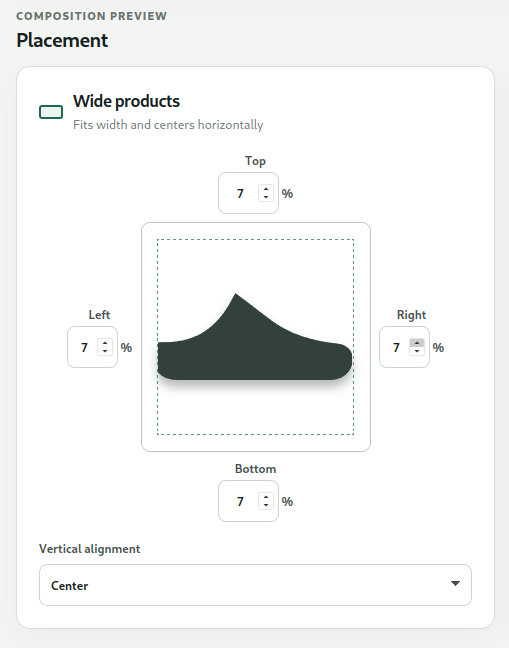
Also configure same padding for Tall products.
Finally, press Save Preset, go back to the Home screen and now you can process your images. Make sure your newly created preset is selected before you start the processing job.
If you don’t have PackshotPanda yet, you can download it from the home page